Config UI - Admin Guide#
The Config UI is the web panel for running the DayZ server. It replaces SSH and hand-edited files - you sign in with a key and drive the server from a browser: start and stop it, edit config, tune loot, browse the map, and read logs.
This guide covers how to use it. It does not cover how it is deployed or built.
One rule governs everything: most changes apply at the next restart. Editing config, tuning loot, switching maps, and queuing updates all stage the change. The running server keeps its current settings until you restart it. Each section below says when this applies.
Signing in#
Open the Config UI (the configs subdomain of the server’s domain). You land on the sign-in card.
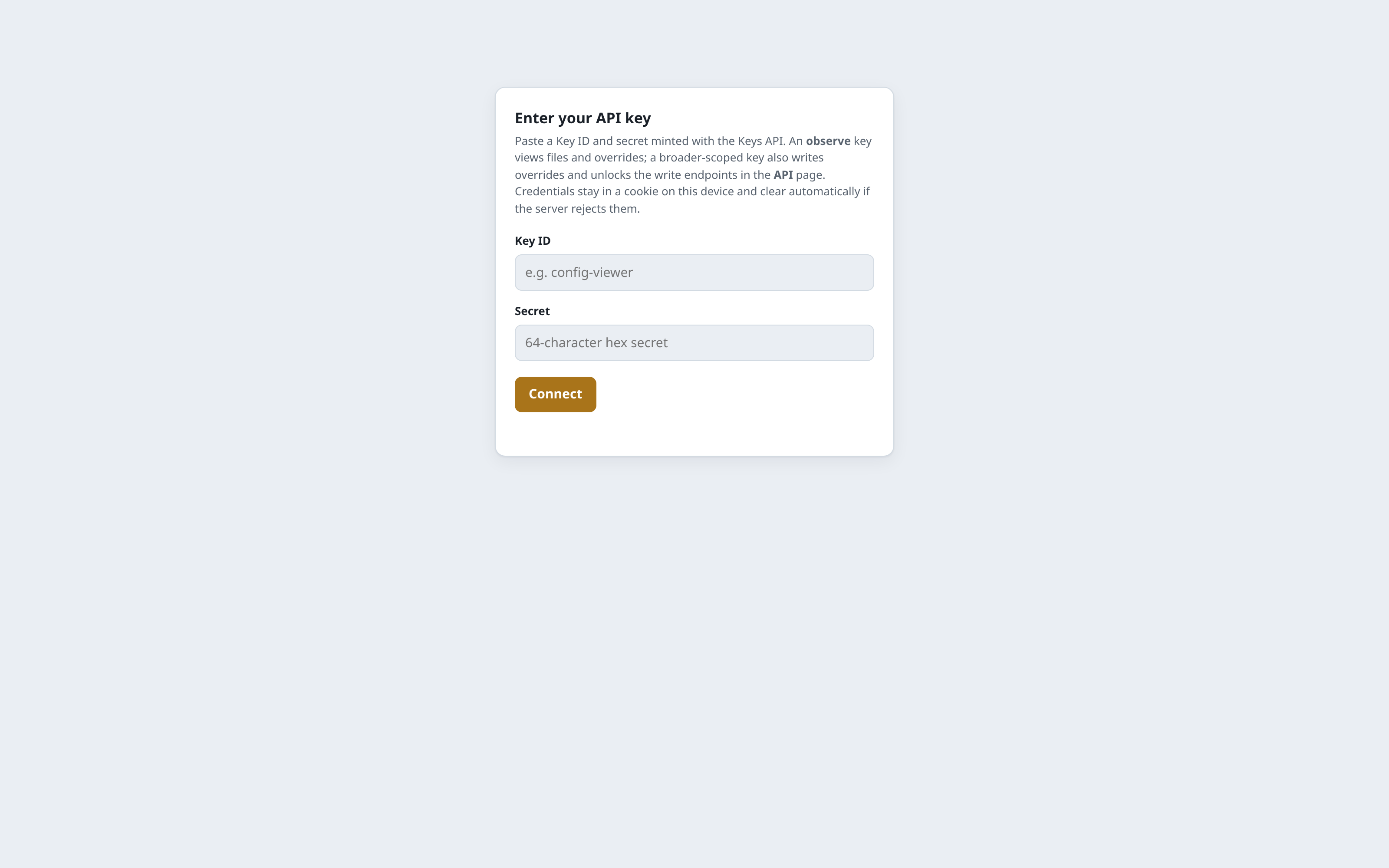
- Paste your Key ID and Secret, then click Connect.
- Your credentials stay in a cookie on that device, so a reload keeps you signed in.
- If the server ever rejects the key, the UI signs you out and shows this card again.
Two kinds of key:
| Key scope | What it can do |
|---|---|
Viewer (observe) | View everything - status, config, loot, map, logs. Cannot change anything. |
| Operator (full) | Everything a viewer can, plus write config, tune loot, and control the server. |
Your access shows as Operator or Viewer in the top-right of each tab and in the sidebar. On a viewer key, write controls are locked. Sign out is at the bottom of the sidebar.
Hand out viewer keys to people who need to see the server without touching it. Keep operator keys to the admins who run it.
The layout#
Six tabs in the left sidebar:
- Maintenance - server health, start/stop/restart, updates, broadcasts
- Server Files - the config editor
- Map - the map browser and AI-point view
- Logs - the server logs
- Mod Docs - the installed mods’ own documentation
- API - the interactive API reference
A status bar sits at the bottom of every tab: server state, player count, active map, uptime, time to next restart, mod count, and a quick restart button.
Maintenance - running the server#
The Maintenance tab is the dashboard. Readouts refresh on their own every 20 seconds.
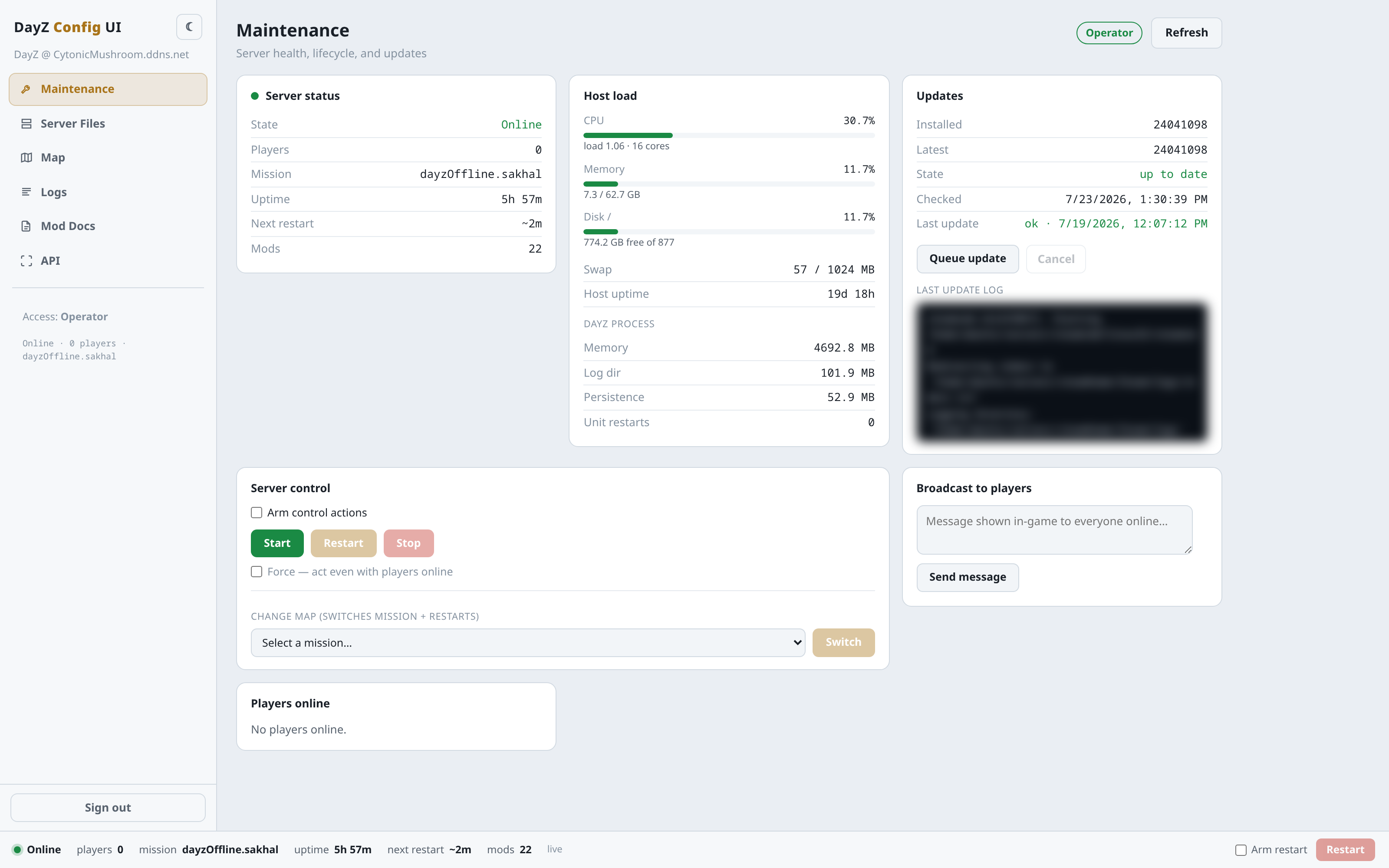
Server status - state (online/offline), players connected, active mission, uptime, time to the next scheduled restart, and mod count.
Host load - the machine’s CPU, memory, disk, and swap, plus the DayZ process’s memory and log/persistence sizes. Colour turns yellow then red as a resource fills up.
Players online - a live roster of who is connected and their ping. Shows “No players online” when empty.
Server control - Start, Restart, and Stop.
- Check Arm control actions first. The buttons stay locked until you do - this stops an accidental click from taking the server down.
- Click Start, Restart, or Stop.
Restart and Stop kick everyone online. If players are connected, the action is refused unless you also check Force - act even with players online. With Force on, the server warns players in-game before it drops them. Start is safe - it only runs when the server is already offline.
Change map - pick a mission from the dropdown and click Switch. This changes the active map and restarts the server in one step. Same player guard as a restart.
Broadcast to players - type a message (up to 200 characters) and click Send message. It appears in-game as [SERVER]. If nobody is online, nothing is sent.
Updates - shows the installed build, the latest available build, and whether an update is queued.
- Click Queue update to stage a game update. It does not restart now - the download and swap happen at the next restart. Online players get a heads-up broadcast.
- Click Cancel to un-queue a staged update.
Queuing an update is safe and kicks nobody. Only the restart that applies it is disruptive.
Server Files - editing config#
The Server Files tab is the config editor. The left sidebar lists every editable file, grouped (General, Custom CE, and per-map groups). Each row carries a badge:
- ro - read-only. View it, but you cannot edit it here.
- rw - whole-file editable (the ban and allow lists).
- a number - how many overrides you already have on that file.
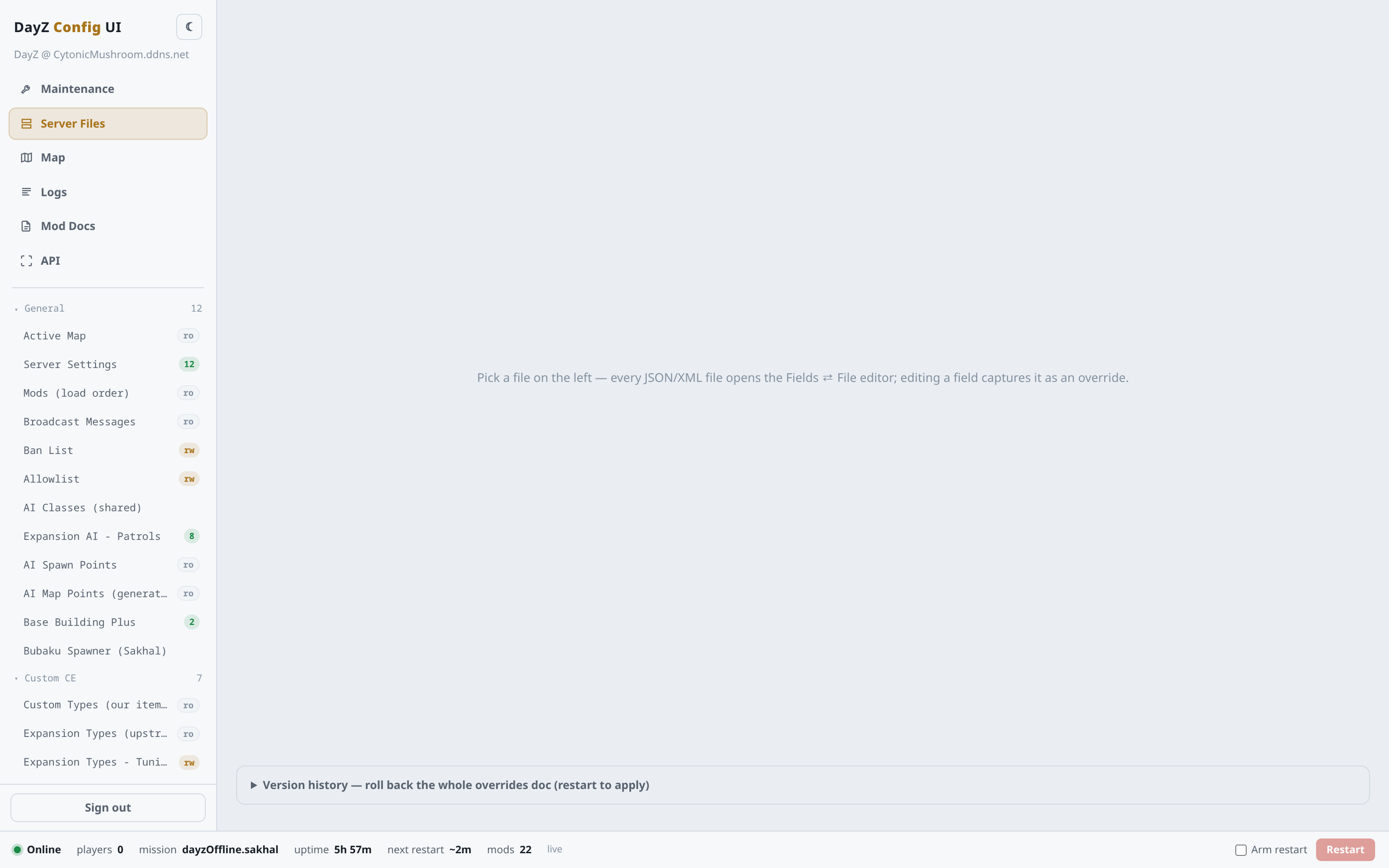
Pick a file to open it.
The override model#
You do not edit config files directly. You override individual fields, and only your changes are saved. This keeps your edits separate from the file’s defaults, so an update to the underlying file does not wipe your tuning.
Each file opens with three views, chosen top-right:
- Fields - the field-by-field editor. Change a value and it is captured as an override (marked with an OVERRIDE badge and the original default beside it). This is the normal way to edit.
- View file - the whole file, read-only, syntax-highlighted.
- Edit file - edit the whole file at once. On save, the UI works out the minimal set of overrides your edit represents.
To override a field: find it, type the new value, and it is staged. To drop an override: click its remove control - the field reverts to default.
Each field also shows the game’s own one-line description of what it does, and a few fields display a friendlier name than the raw config key (the whitelist is labelled Allowlist, for example). The filter still matches the real key, so searching “whitelist” finds it.
Per-map files carry a layer choice: apply your override to this mission only or to all missions.
Saving:
- Your staged changes show as Unsaved with a Save N deltas button.
- Click Save. The change is written and a snapshot of the previous state is kept.
- Restart the server to apply it. Saving alone does not change the running game.
Use Discard to throw away unsaved changes. Use Version history at the bottom to roll back to an earlier saved state.
Two safety nets you may meet: if another admin saved the same file since you opened it, your save is refused and you are asked to reload (so you never clobber their work). And a save that would wipe most of your overrides is refused unless you confirm - a guard against a partial or stale document.
Whole-file editors - the Ban List and Allowlist (the rw rows) are edited as plain whole files, not overrides.
Read-only files - ro rows are reference or auto-built files (the mod load order, broadcast messages, the active map, and files the server rebuilds at boot). The editor locks them so you cannot save an edit that the server would just overwrite.
Disabled mods - if a mod is switched off on the server, its config surfaces are hidden from this list automatically, so you only see config that is actually in play.
The day / night cycle#
The Server Settings file has a dedicated panel for the day/night cycle - the one setting that is hard to reason about as raw numbers.
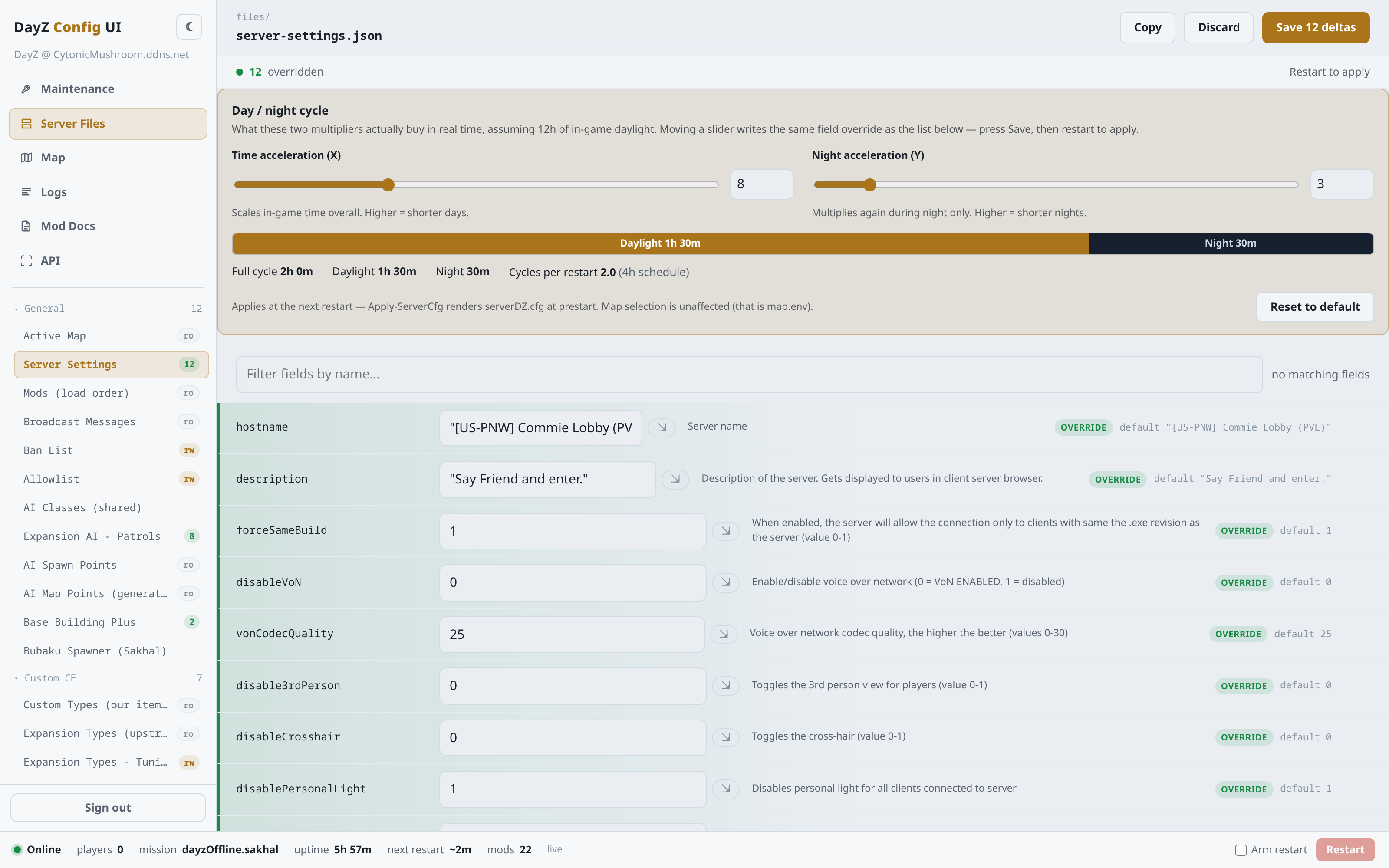
- Time acceleration (X) - scales in-game time overall. Higher means shorter days.
- Night acceleration (Y) - speeds night up further. Higher means shorter nights.
The bar underneath shows what the two sliders actually buy in real time: how long daylight lasts, how long night lasts, the full cycle length, and how many cycles fit in one restart window. Reset to default clears both. Like every config change, it applies at the next restart.
Dark night rotation - the Server Settings file also carries a rotateDarkNights toggle. When it is on, alternate sessions (roughly four hours each) run darker than normal and then back, so nights are not always the same brightness. It is off by default, and when off the lighting is exactly as configured.
Server Files - tuning loot#
The Custom CE group holds the world-loot tuning. Open Expansion Types - Tuning to control how much of each Expansion item spawns in the world.
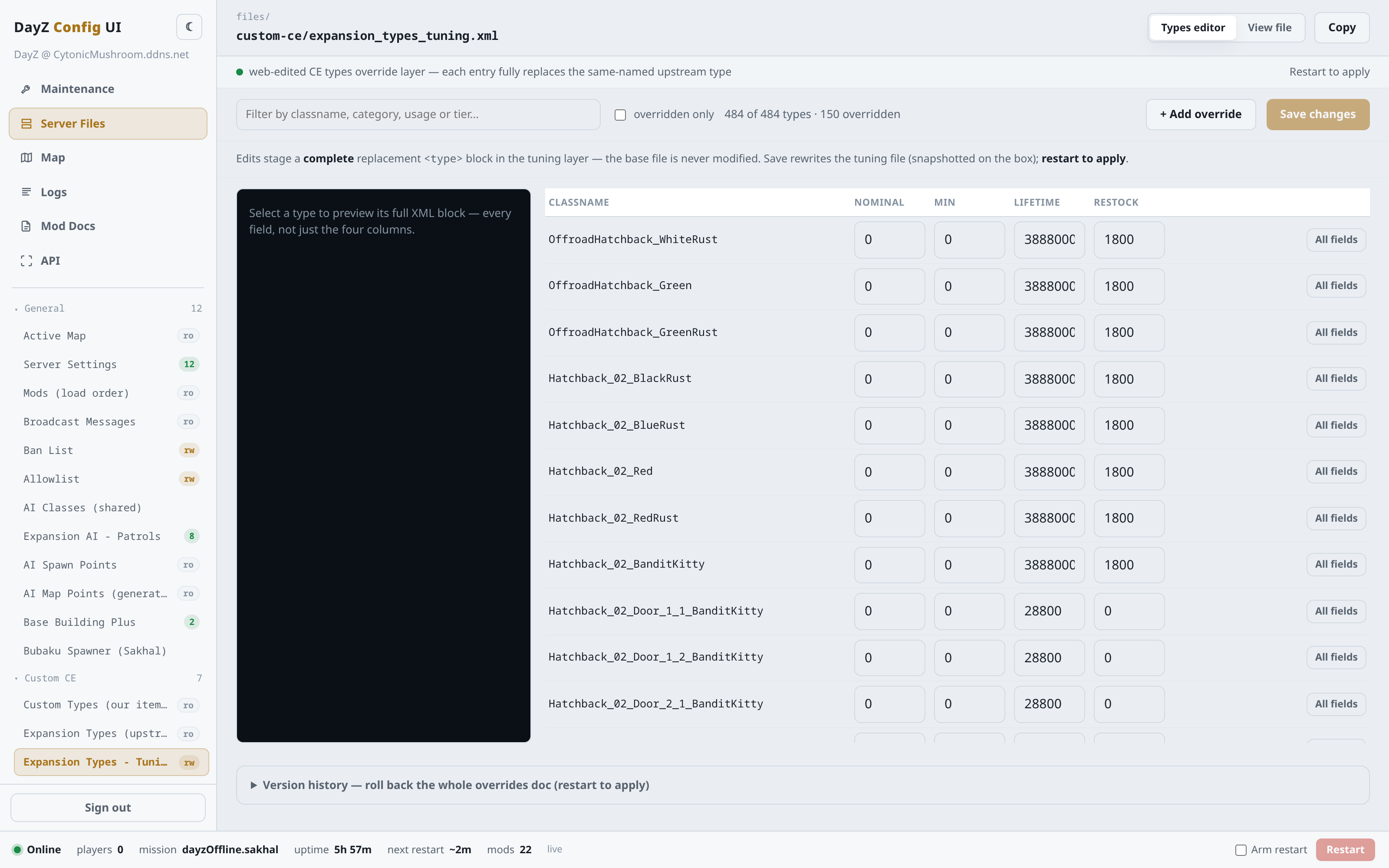
Every item is a row. The four columns are the loot economy’s core knobs:
- Nominal - the target number of that item in the world at once. Higher means more common.
- Min - when the count drops to this, the economy starts refilling toward nominal. A wider gap between min and nominal means the item fluctuates more before it comes back.
- Lifetime - seconds an untouched item sits before it despawns.
- Restock - seconds the economy waits before refilling.
0refills as soon as it can.
Use the filter to find items by classname, category, usage, or tier. Overridden only narrows the list to what you have already changed.
To tune an item: type a new value in a column, and it is staged. Click All fields on a row for the rest - category, usage, value tier, and flags. Selecting a row fills the preview panel on the left with that item’s full definition, so you see exactly what will be written.
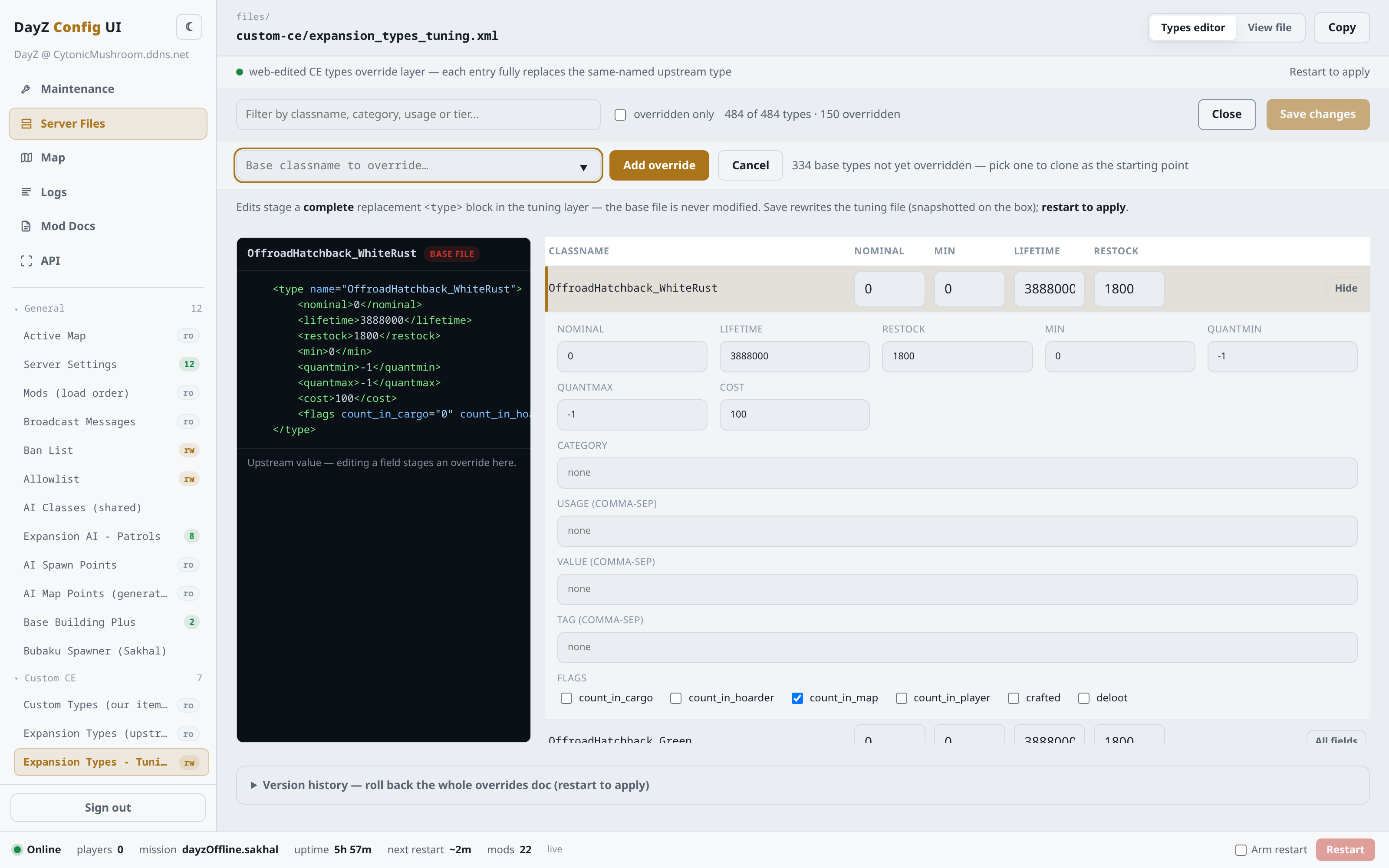
- Revert on a row drops your override and returns the item to its upstream default.
- + Add override starts a new one: pick a base item from the list and its upstream values clone in as your starting point. You then tune from there. You can only override items that exist upstream.
The upstream item list is read-only reference; the tuning file is the one you edit. Save changes, then restart to apply.
To make an item rarer, lower its Nominal. To thin out clutter that lingers, shorten its Lifetime. Change one knob at a time and watch the result after a restart.
Map#
The Map tab draws the world with the AI and loot economy laid over it, and it is where you edit AI patrols.
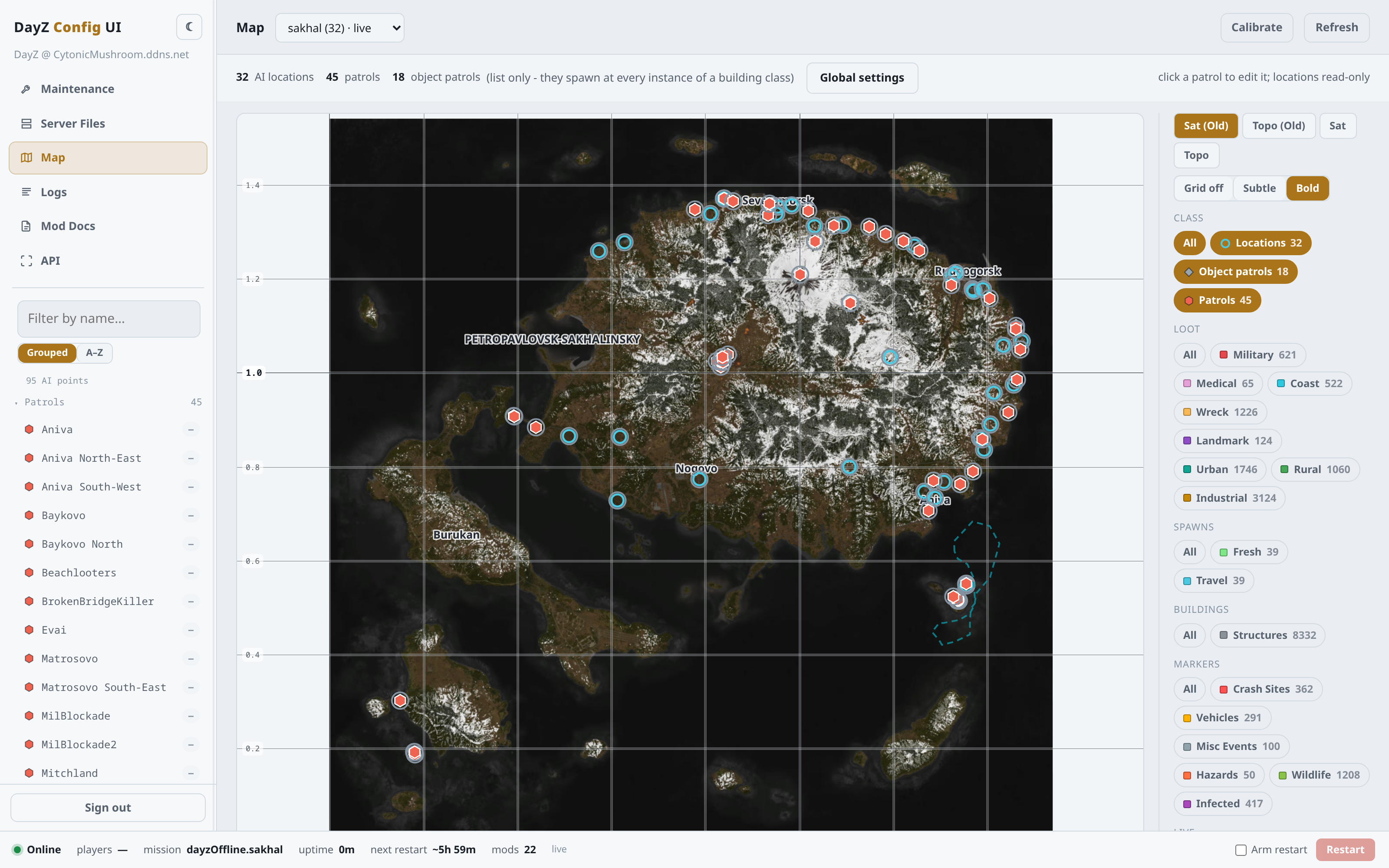
Browsing:
- Tile layers (top-right) switch the base map - satellite or topographic, older or higher-resolution rips.
- Filters toggle what is drawn: AI locations, patrols, and object patrols; loot categories; spawn points; buildings; and event markers. Each shows a count.
- The left list names the AI points. Selecting one highlights it, and for a patrol it draws the route.
- Calibrate aligns a tile layer that does not sit perfectly on the world grid: mark a landmark on the layer, type its true coordinates, and repeat for a few points. A readout shows how well the alignment fits. Preview checks it before you keep it.
Editing patrols#
The Map tab owns the AI patrols. Click a patrol to open its editor.
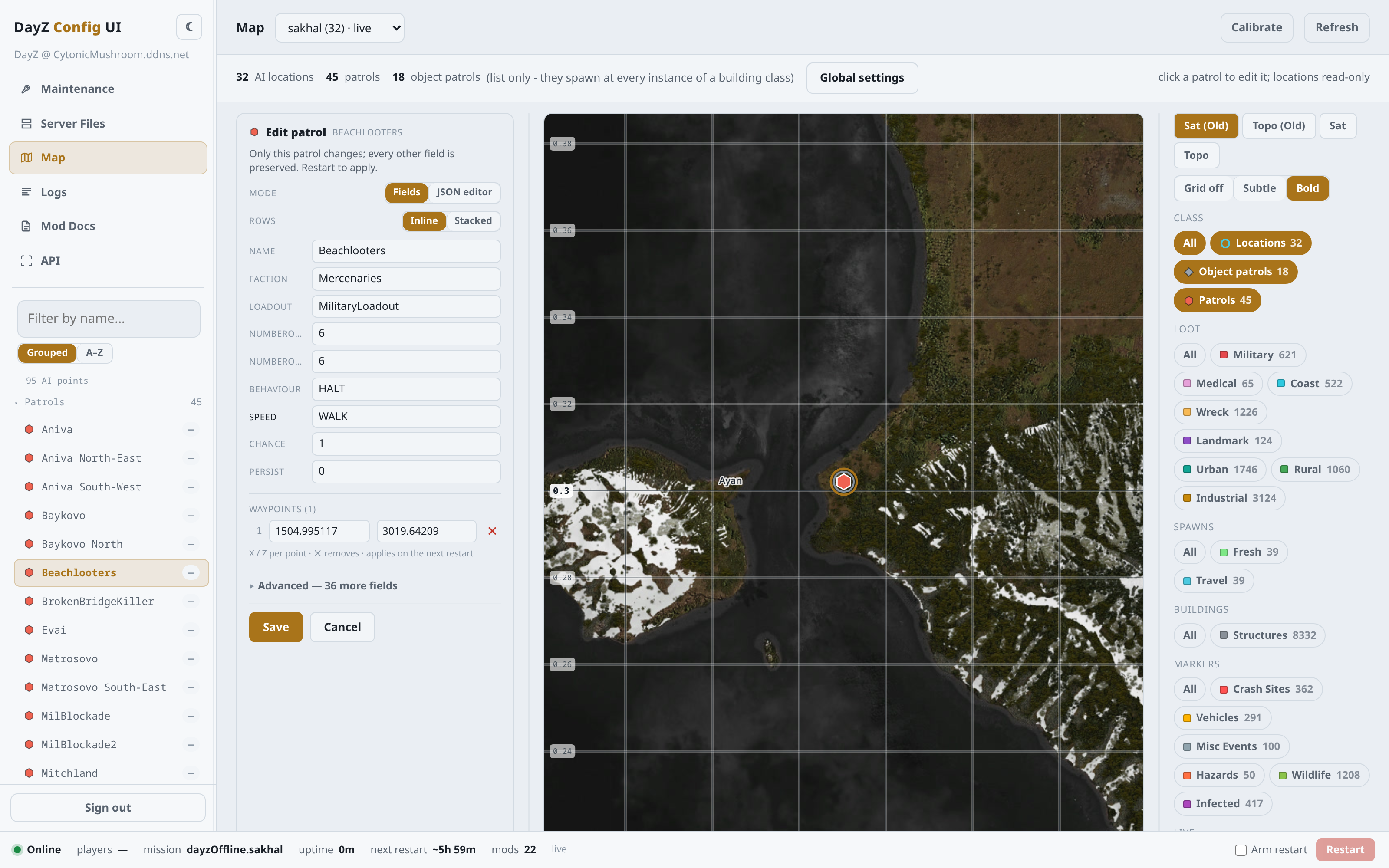
- Core fields cover the everyday knobs - faction, loadout, unit count, behaviour, speed, and spawn chance.
- Advanced exposes the full set of patrol fields. A field left at
-1inherits the global default for that setting. - Global settings (top of the panel) edits the map-wide patrol defaults that every
-1field falls back to. - Save writes the patrol back to the live AI file and keeps every field you did not touch. Like all config, it applies at the next restart.
Because the Map tab owns patrols,
AIPatrolSettings.jsonis read-only in the Server Files editor - edit patrols here, not there. AI locations are view-only on the map for now; a location editor is a later addition.
Logs#
The Logs tab reads the server’s own logs.
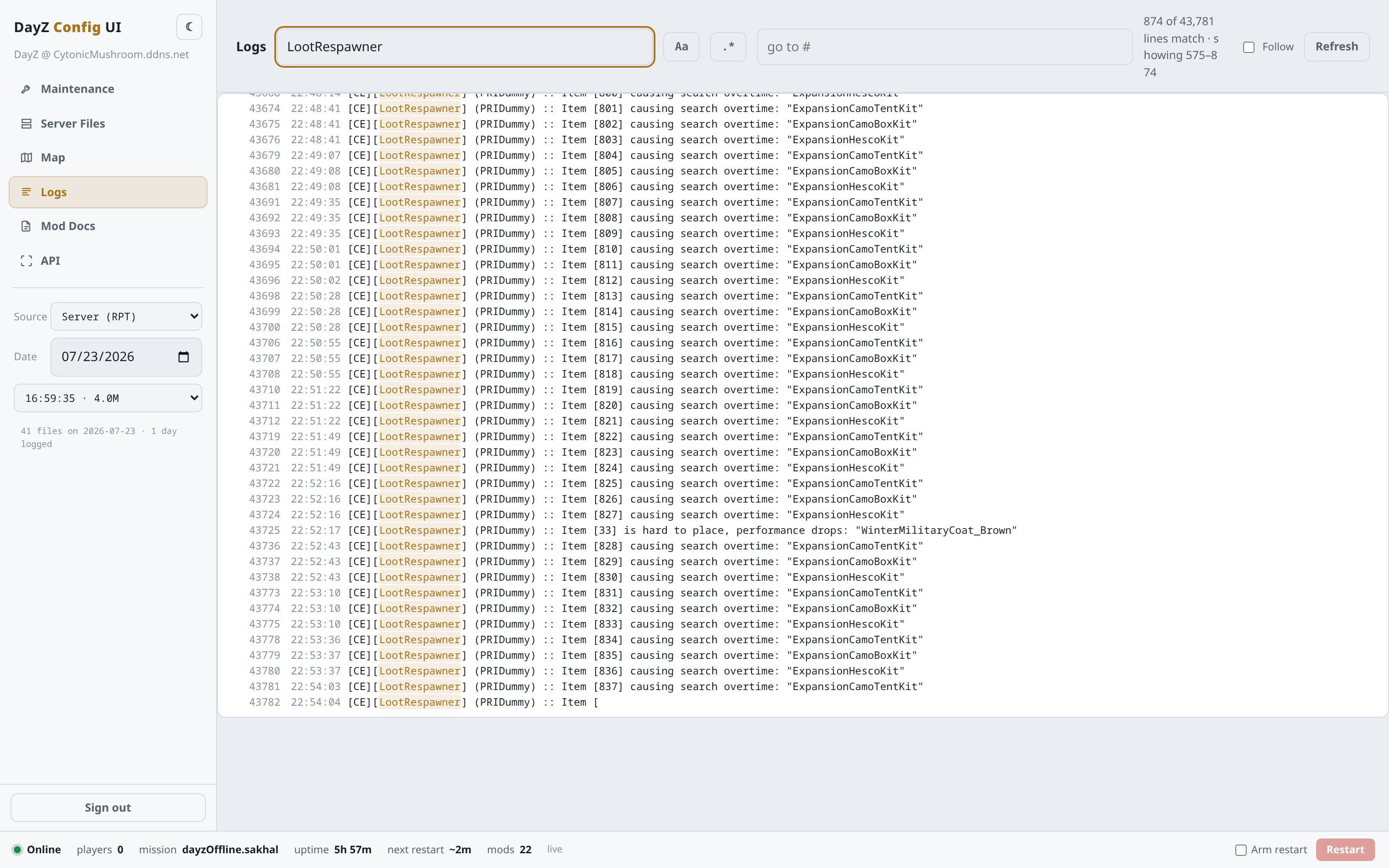
- Pick a Source (for example the server RPT) and a date/file.
- Type in the filter and press Enter to show only matching lines. Aa makes it case-sensitive; .* treats it as a regular expression.
- Follow live-tails the log as new lines arrive. Refresh reloads it. Go to # jumps to a line number.
The match count (for example “874 of 43,781 lines match”) shows at the top right. Repetitive noise is filtered out by default so real events stand out.
Mod Docs#
The Mod Docs tab collects the installed mods’ own documentation - their readme and reference files, read straight off the server. Each mod is a group in the sidebar with a count of its docs. An Other links group at the bottom points to the upstream sources those mods come from.
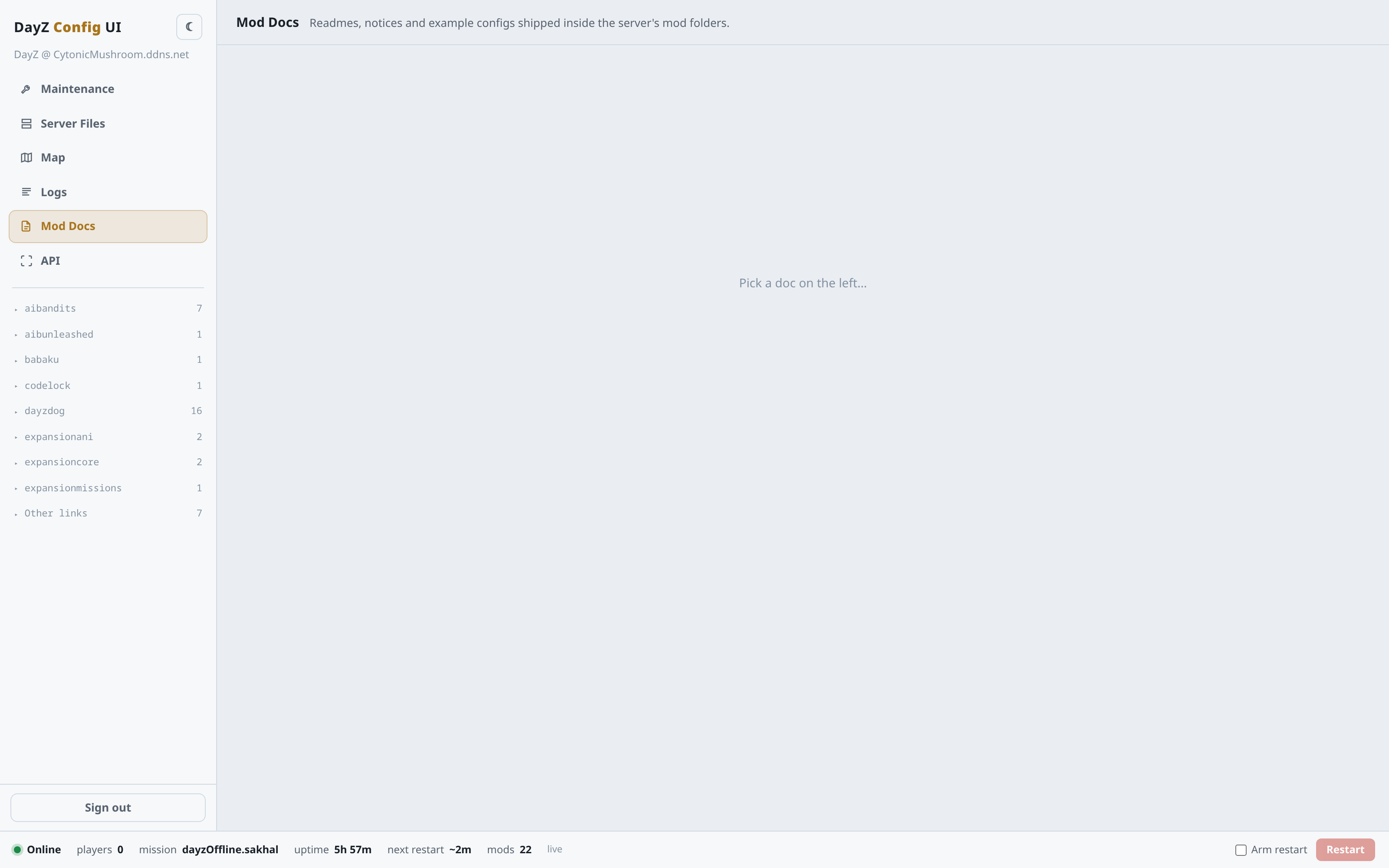
Use it to answer “what does this mod’s setting do” without leaving the panel.
API#
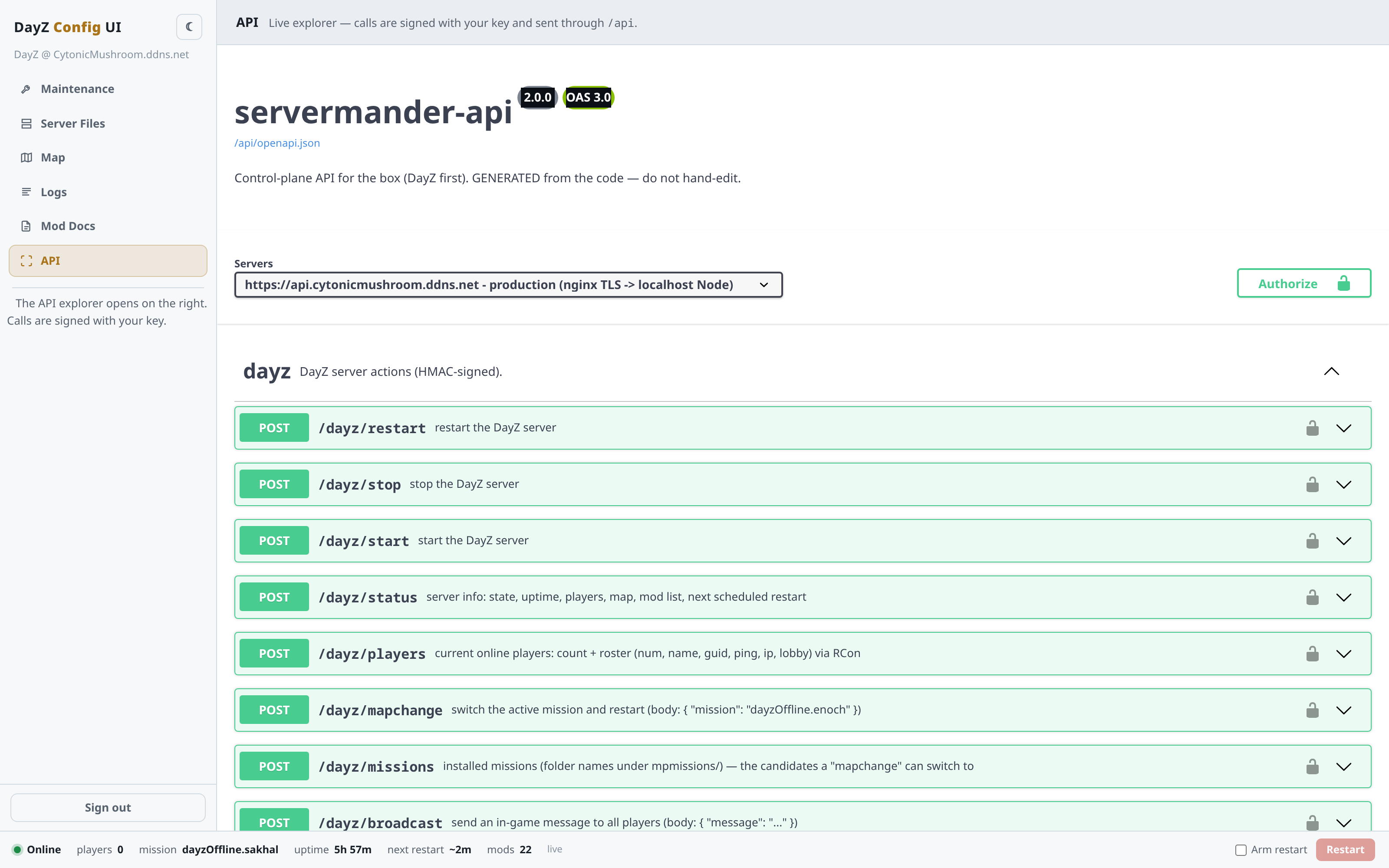
The API tab is an interactive reference for the underlying server API - every action the panel can take, signed with your key. Most admins never need it; the tabs above cover day-to-day work. It is there for scripting or checking exactly what an action does.
Quick reference#
What needs an operator key: every server control (start/stop/restart/switch map), every config or loot save, and broadcasts. Viewing anything needs only a viewer key.
What is disruptive: Restart, Stop, and Change map kick online players (use Force to override the guard). Everything else - editing config, tuning loot, queuing an update - is staged safely and kicks nobody.
The golden rule: saving stages a change. Restart the server to apply it.